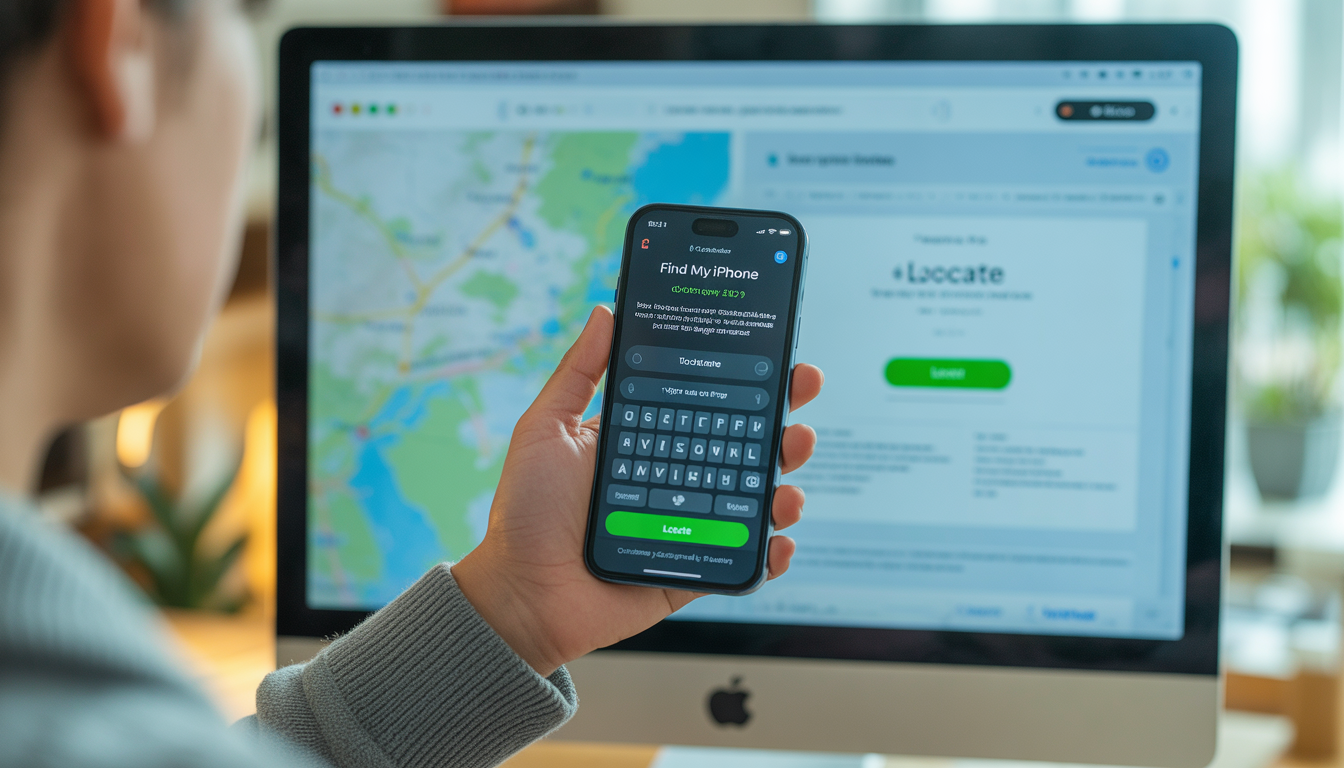
Losing an iPhone can be stressful and scary. Your iPhone is not just a phone—it contains your photos, contacts, messages, personal data, and sometimes even bank or work information. The good news is that Apple provides powerful tools to find your iPhone from another phone, even if the iPhone is lost, stolen, or switched off.
In this complete guide, you will learn step by step how to find your iPhone using another phone, whether it is an iPhone, Android phone, or any web browser. This guide is written in simple English, so anyone can follow it easily.
Things You Need Before Finding Your iPhone
Before starting, make sure at least one of these is true:
- You know your Apple ID and password
- Find My iPhone was enabled on the lost iPhone
- The lost iPhone was connected to the internet (WiFi or mobile data)
If Find My iPhone was enabled, your chances of locating your phone are very high.
Table of Contents
Method 1: Find Your iPhone Using Another iPhone (Best Method)
If you have access to another iPhone, this is the easiest and most reliable way.
Step-by-Step Guide
- Open the Find My app on the other iPhone
- If the app is already signed in, tap Me → Sign Out (only if it’s not your account)
- Sign in using your Apple ID and password
- Tap Devices
- Select your lost iPhone from the list
You will now see the live location of your iPhone on the map.
What You Can Do From Find My App
- Play Sound: Helps locate your iPhone if it is nearby
- Mark as Lost: Locks the phone and shows a message
- Erase iPhone: Deletes data if you think it is stolen
This method works even if your iPhone is silent.
Method 2: Find Your iPhone Using an Android Phone
Yes, you can find your iPhone using an Android phone as well.
Steps:
- Open any web browser on the Android phone
- Go to iCloud website
- Sign in with your Apple ID and password
- Tap Find Devices
- Select your lost iPhone
You will see the iPhone’s location on the map.
Tip: Use desktop mode in the browser for better experience.
Method 3: Find Your iPhone Using Any Phone Browser
You do not need an app. Any phone with a browser can help.
Steps:
- Open browser
- Visit iCloud.com
- Sign in to your Apple ID
- Choose Find My
- Select your iPhone
This method works on:
- Android phones
- Feature phones with browsers
- Tablets
Method 4: Use Family Member’s Apple Device (Family Sharing)
If you use Family Sharing, this method is very helpful.
Steps:
- Ask a family member to open Find My
- Tap Devices
- Select your iPhone
No Apple ID login is needed if Family Sharing was already enabled.
What If Your iPhone Is Offline?
If your iPhone is switched off or has no internet:
- You will see its last known location
- Location updates automatically when it comes online
- Enable Notify When Found in Find My
Apple’s network can still help find your phone using nearby Apple devices.
How to Play Sound on Lost iPhone From Another Phone
This is useful if your iPhone is nearby.
Steps:
- Open Find My
- Select your iPhone
- Tap Play Sound
The iPhone will ring loudly even if silent mode is on.
How to Mark iPhone as Lost From Another Phone
Lost Mode protects your data.
What Lost Mode Does:
- Locks your iPhone
- Disables Apple Pay
- Displays your contact number
Steps:
- Open Find My
- Select iPhone
- Tap Mark as Lost
- Enter a contact number and message
How to Erase iPhone Remotely (Last Option)
If you believe your iPhone is stolen, erase it.
Steps:
- Open Find My
- Select iPhone
- Tap Erase This Device
⚠️ After erasing, you cannot track it unless it reconnects to your Apple ID.
Can I Find My iPhone Without Apple ID?
Unfortunately, no. Apple ID is required for security reasons.
If someone else could track your phone without Apple ID, it would be a privacy risk.
What If Find My iPhone Was Disabled?
If Find My was turned off:
- You cannot track location
- You should contact your carrier
- Change Apple ID password immediately
- Report the phone as stolen
How Accurate Is Find My iPhone Location?
Accuracy depends on:
- GPS signal
- Internet connection
- Nearby Apple devices
In most cases, accuracy is very high, often within a few meters.
Security Tips After Finding Your iPhone
Once you recover your iPhone:
- Change Apple ID password
- Enable two-factor authentication
- Check unknown logins
- Keep Find My always ON
Common Mistakes to Avoid
- Not enabling Find My
- Sharing Apple ID password
- Delaying Lost Mode
- Ignoring security alerts
Frequently Asked Questions (FAQs)
Can I find my iPhone if it is switched off?
You can see the last known location.
Can I find my iPhone from another phone for free?
Yes, Apple’s Find My service is completely free.
Does Find My work internationally?
Yes, it works worldwide.
Will the thief know I am tracking the phone?
No, unless you enable Lost Mode with a message.
Final Conclusion
Finding your iPhone from another phone is easy, safe, and reliable if Find My iPhone is enabled. Whether you use another iPhone, an Android phone, or a web browser, Apple gives you full control to locate, lock, or erase your device.
The most important thing is to stay calm and act quickly. The faster you use Find My, the higher the chances of recovering your iPhone.



3 Comments on “How Do I Find My iPhone From Another Phone? (Complete Guide 2026)”