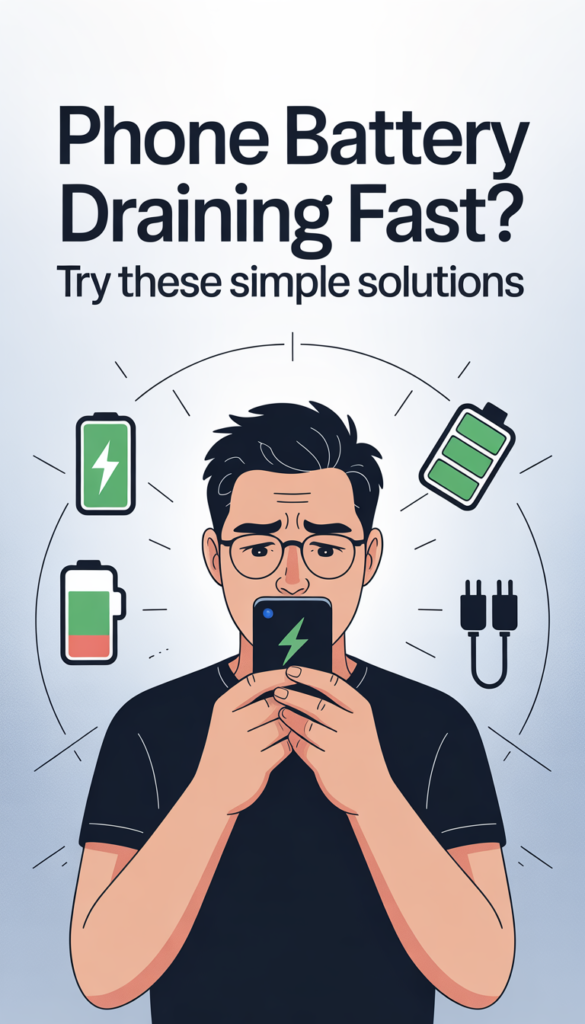
Many Android phone users notice that their battery drains quickly, even when they barely use their device. This can be very frustrating, especially when you need your phone for work, study, or entertainment.
The good news is that you do not need to buy a new battery or phone. Most battery drain problems can be solved by simple adjustments and habits.
Table of Contents
Common Reasons for Fast Battery Drain
Understanding why your battery is draining quickly is the first step to fixing it.
Major Causes
- Too many apps running in the background
- High screen brightness
- Old or outdated apps
- Poor network coverage
- Heavy widgets or live wallpapers
- Frequent notifications from multiple apps
Reduce Screen Brightness
Screen is one of the biggest power consumers on any smartphone.
How to Reduce Brightness
- Open Settings → Display
- Lower Brightness Level or enable Auto Brightness
Keeping brightness at moderate levels can significantly save battery life.
Image Suggestion: Screenshot of Android brightness settings
Internal Link Suggestion: Link to “How to Save Battery Life on Android Phones”
Close Background Apps
Apps running in the background consume battery even if you are not using them.
Steps to Close Background Apps
- Open Settings → Apps → Running Apps
- Select apps using most battery
- Tap Force Stop if not needed
This reduces unnecessary battery usage.
Turn Off Unnecessary Features
Some features use battery continuously even if you do not actively use them.
Features to Turn Off
- Bluetooth when not in use
- Location services (GPS)
- NFC
- WiFi and mobile data when not needed
Disabling unused features can extend battery life significantly.
Limit Push Notifications
Push notifications keep your phone awake frequently, which consumes battery.
How to Limit Notifications
- Open Settings → Notifications
- Turn off notifications for apps you rarely use
This keeps your phone idle longer and saves battery.
Use Battery Saver Mode
Most Android phones have a Battery Saver or Power Saving mode.
How to Enable
- Open Settings → Battery → Battery Saver
- Turn it on or schedule it automatically
This feature limits background activity and extends battery life.
Image Suggestion: Screenshot of Battery Saver mode
Update Apps and System
Outdated apps and system versions can cause bugs and higher battery usage.
How to Update
- Update all apps via Google Play Store
- Check System Update in Settings → About Phone
Updated software often includes battery optimization fixes.
Avoid Heavy Animations and Live Wallpapers
Live wallpapers and excessive animations consume RAM and battery.
Recommendations
- Use a simple static wallpaper
- Reduce animation speed in Developer Options
This makes the phone faster and battery last longer.
Check Battery Usage Stats
Android provides detailed battery usage information.
How to Check
- Open Settings → Battery → Battery Usage
- Identify apps using highest battery
- Consider uninstalling or restricting heavy apps
Internal Link Suggestion: Link to “How to Free Up Storage on Android”
Reduce Screen-On Time
The longer your screen stays on, the more battery it consumes.
Tips
- Reduce screen timeout to 30–60 seconds
- Avoid keeping apps open unnecessarily
- Use dark mode (if supported)
Conclusion
Battery drain is a common issue on Android phones, but it is often easy to fix. By reducing screen brightness, closing background apps, limiting notifications, and using battery saver mode, you can extend your battery life significantly.
Regular maintenance, software updates, and careful feature usage will help keep your phone running efficiently all day.